You can watch internet-delivered television on a compatible Amazon Fire TV Stick using a supported application and an authorized content source. However, your setup depends on the exact Firestick model, its operating system, and the application you want to use.
Not every Fire TV device supports the same apps or installation process. Before buying a subscription or downloading a player, check whether your device runs Fire OS or Vega OS and whether the application is available for that platform.
This guide explains how to prepare your Firestick IPTV setup, choose a player, explore recording options, and troubleshoot common playback problems.
What Do You Need for IPTV on Firestick?
A working setup normally involves three separate parts:
| Component | What it does |
|---|---|
| Fire TV device | Runs the compatible viewing application |
| Streaming application or IPTV player | Provides the interface for accessing content |
| Authorized content source | Supplies the channels or other media you can watch |
Some streaming services provide their own application. Other setups use a separate player and account or playlist information supplied by a content provider.
Installing an IPTV player does not automatically provide television channels. Likewise, purchasing a player upgrade does not necessarily include a content subscription.
Before proceeding, confirm:
- Your exact Fire TV model and operating system.
- Whether your chosen application supports that device.
- The account or playlist format your service supplies.
- Included channels and regional availability.
- Simultaneous connection limits.
- Any separate player charges.
Can You Still Download IPTV on Firestick?
Compatible streaming applications remain available for Fire TV, but there is no single application called “IPTV” that works identically on every device.
The important question is whether your chosen player or streaming service supports your exact model.
Fire OS and Vega OS: Why the Difference Matters
Fire OS is based on Android. Vega OS uses a different application platform, so an Android APK cannot simply be installed and run natively on a Vega device.
This means an older APK-based Firestick tutorial may not apply to your device.
Before following installation instructions:
- Open your Fire TV settings.
- Find the device information under My Fire TV or the equivalent device menu.
- Identify your model and software platform.
- Search the Amazon Appstore on that device.
- Check the application developer’s current compatibility information.
Use the installation instructions for your actual device rather than assuming every product sold as a Fire TV Stick behaves the same way.
How to Install IPTV on Firestick
Start with a supported application and an authorized content source. The steps below describe the general process; exact menus vary by application and device.
Step 1: Prepare Your Fire TV Device
Complete the device setup, connect it to your network, and check for available software updates.
Make sure you have sufficient free storage for the application and any additional data it needs.
Step 2: Find a Compatible Application
Search the Amazon Appstore for your chosen application.
Check the developer name and compatibility details before installing. Similar names and logos do not establish that an application is the genuine release you intended to download.
If the application is not listed, consult its developer’s official installation instructions. Do not assume that an APK installation method is available on your device.
Step 3: Install Through a Supported Route
Use the Amazon Appstore or another developer-supported route appropriate to your device.
Avoid random download codes, modified APKs, and installation files from unidentified sources. If your device displays a security or content-policy warning, investigate the reason instead of treating it as an ordinary installation step.
Step 4: Add Your Authorized Account or Playlist
Depending on the player, you may be asked for account credentials, a server address, or a playlist URL.
Enter only the details supplied for your account. Keep them private and do not post screenshots containing passwords or complete playlist links.
If your offer uses Xtream Codes credentials, review the Xtream Codes setup guide.
Step 5: Check Playback and Package Access
Test the content included in your offer and confirm that the player loads the expected account information.
A missing channel or feature may relate to the package, regional availability, or provider configuration—not necessarily the Firestick itself.
What Is the Best IPTV App for Firestick?
There is no universal best IPTV player for every Fire TV device. The right application depends on platform compatibility, account format, viewing preferences, and required features.
Use these criteria when comparing players:
| What to check | Why it matters |
|---|---|
| Device compatibility | The app must support your operating system |
| Account-format support | It must accept the details your provider supplies |
| Remote-friendly navigation | The interface should work comfortably on a television |
| Programme-guide support | Guide information must be supplied and supported |
| Recording features | Availability depends on the app, storage, and stream |
| Free versus paid features | A free download may not include every function |
| Developer support | Installation and troubleshooting instructions should be available |
TiviMate on Firestick
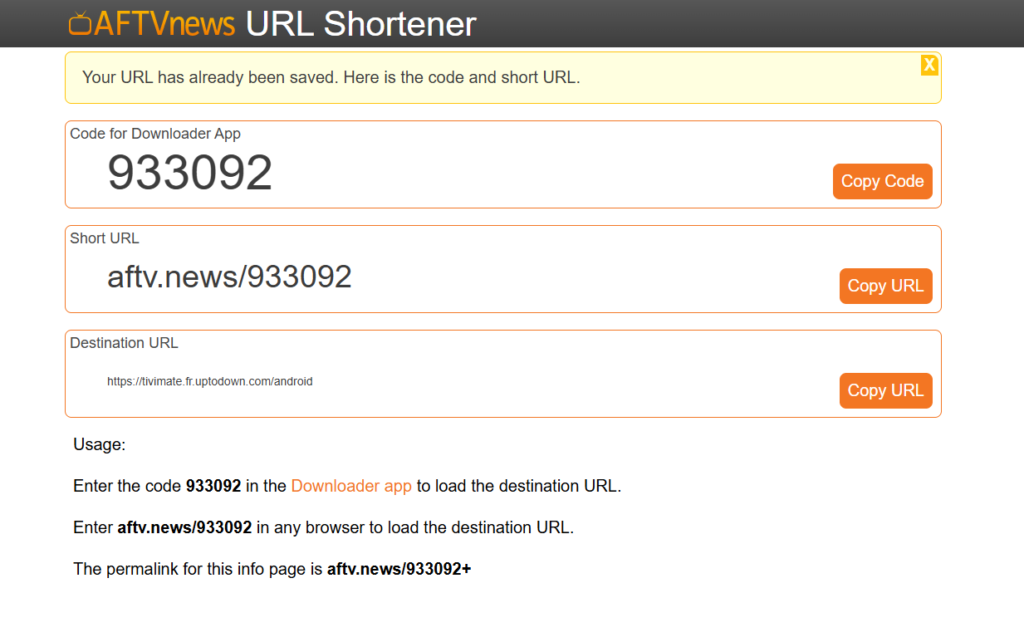
TiviMate is a media player, not a television subscription. It requires your own content source and does not include channels simply because you install it or purchase Premium.
Confirm compatibility with your particular Fire TV device before paying for an upgrade.
Read the TiviMate setup and subscription guide for the distinction between player features and content access.
IPTV Smarters on Firestick
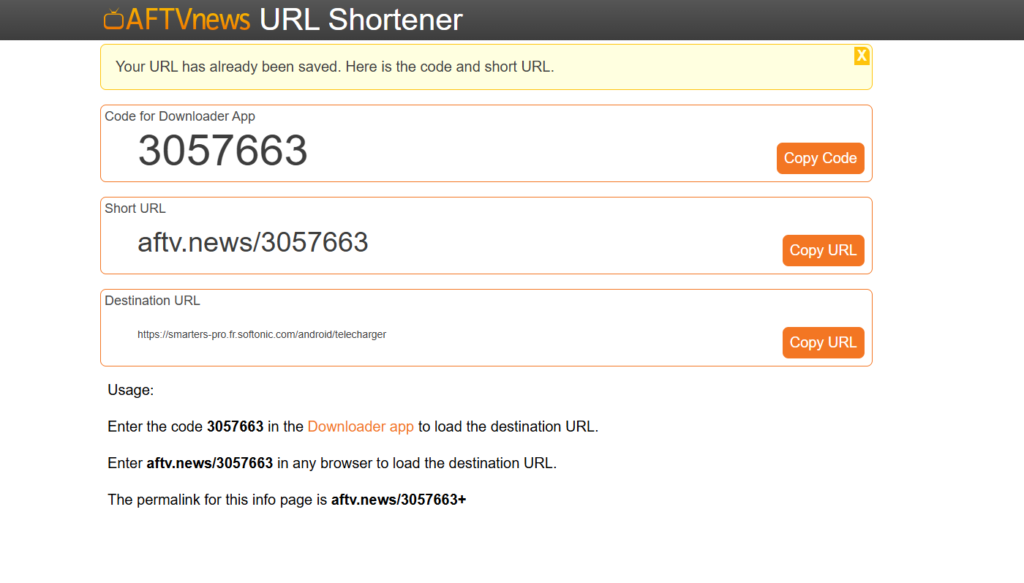
If you are considering IPTV Smarters, check the exact application version, developer, and installation route for your device.
Do not assume that instructions for one Smarters-branded application apply to every similarly named release.
Review the IPTV Smarters setup information and confirm your intended configuration.
How Do I Get IPTV Smarters on Firestick for Free?
Check the developer’s current distribution and pricing information.
A free application download does not mean that television content or all advanced player features are free. Avoid modified versions that promise to unlock paid features or subscription content.
How to Record IPTV on Firestick
Recording depends on the application, the stream, storage access, and the conditions of your content service. A Firestick does not automatically record everything displayed on the television.
Before attempting to record, confirm that your application supports recording and that you are permitted to record the content.
Recording Setup Checklist
- Check whether recording requires a paid player upgrade.
- Choose a recording location supported by the application and device.
- Confirm that the application has permission to write to that location.
- Check available storage.
- Confirm the provider’s connection allowance.
- Make a short test recording.
- Play it back before scheduling a longer programme.
Watching one stream while recording another may require additional simultaneous connections. Ask your provider how the allowance applies.
Do not assume that every Firestick supports the same external-storage arrangement. USB access, network storage, and file permissions depend on the hardware, operating system, and application.
Can You Record TV Programmes on a Firestick?
Sometimes, through an application or service that provides recording functionality.
A local player recording and a provider’s cloud DVR are different systems. Check which one your service offers, where recordings are stored, and whether access continues after your subscription expires.
Is Amazon Blocking IPTV on Firestick?
Amazon has introduced blocking for certain applications identified as associated with unauthorized content. That does not mean every legitimate internet television service is blocked.
It is also important to distinguish an app block from a compatibility problem.
| Symptom | What to investigate |
|---|---|
| App is missing from the store | Platform support, region, or distribution |
| Android APK will not install | Whether the device uses a compatible operating system |
| Security or content-policy warning appears | The specific warning and application status |
| App opens but channels fail | Account details, network, package access, or service availability |
| App crashes | Application version, cache, storage, or device issues |
A player being unavailable on Vega OS is not automatically evidence of a content-policy block.
How Do I Stop Amazon from Blocking Apps on My Firestick?
There is no universal setting that guarantees an application will remain available or removes a legitimate security restriction.
Read the warning, check the developer’s current guidance, and use supported applications with authorized content. Do not disable updates or install modified software simply to avoid an enforcement message.
A VPN is not a substitute for application compatibility and does not override every device-level restriction.
Why Is My Firestick Not Playing IPTV?
Start by identifying whether the problem affects the application, your account, one channel, or your entire internet connection.
1. Restart the Device
Restart your Fire TV from its settings. Alternatively, disconnect its power adapter for one minute, then reconnect it.
2. Check Your Network
Test another supported streaming application.
If several applications struggle, investigate your network first. If only one account or channel fails, ask the relevant provider about that specific issue.
3. Verify Your Account Details
Check the server address, username, password, and subscription status.
Confirm whether the account is active and whether you have reached its simultaneous connection limit.
4. Clear the Application Cache
On supported Fire TV interfaces, open:
Settings → Applications → Manage Installed Applications → Your app → Clear Cache
Try the application again before taking more disruptive steps.
Clearing application data is different from clearing cache and may remove saved configuration or require you to sign in again. Keep your account details available before doing it.
5. Check for Updates and Free Storage
Review application and system updates. Remove unused applications if storage is low.
Do not assume that installing an older APK will solve a platform incompatibility or content-policy block.
6. Contact Support with the Exact Error
Provide your device model, application version, error message, and whether the issue affects one channel or all content.
Do not include your password in a public message or screenshot.
How to Reduce IPTV Buffering on Firestick
Buffering can originate from your network, device, application, or the content service.
Try these checks in order:
- Compare playback in another supported application.
- Pause other heavy network activity temporarily.
- Improve the device’s Wi-Fi connection where possible.
- Test a lower-resolution stream if one is available.
- Restart the device and application.
- Ask the provider whether the affected stream has a service issue.
No player or subscription can guarantee buffer-free viewing under every network condition.
Do I Need a VPN for IPTV on Firestick?
A VPN is not a universal requirement for watching authorized content on Firestick. Check your service’s requirements and terms rather than assuming every IPTV setup needs one.
A VPN changes how traffic is routed, but it does not provide channel rights, replace a subscription, fix an incompatible application, or guarantee better playback.
If you choose to use one, confirm device compatibility and service restrictions. Do not treat a VPN as permission to access content you are not authorized to watch.
Which Firestick Is Best for Streaming IPTV?
Choose based on compatibility first.
Before buying, confirm:
- The operating system.
- Availability of your preferred application.
- Supported video formats and resolutions.
- Network capabilities.
- Storage requirements.
- Whether your intended recording setup is supported.
A device advertised as “4K” does not guarantee compatibility with every IPTV player. Your television, content source, and network also affect the viewing experience.
Explore Xtreame IPTV Subscription Options
Before choosing a Xtreame IPTV subscription for a Firestick setup, ask support to verify your device, player, and account format.
The listed subscription prices are:
| Subscription period | Listed price |
|---|---|
| 1 month | $15 USD |
| 6 months | $38 USD |
| 12 months | $59 USD |
| 24 months | $89 USD |
These are viewing-subscription prices for the full stated periods, not player-license prices. Confirm included access, regional availability, connections, and any additional charges before purchase.
Explore your next step:
- IPTV trial and test information — check current availability and conditions.
- Monthly IPTV subscription — review the one-month offer.
- IPTV plans and pricing — compare subscription durations.
- Subscribe to IPTV — explore purchase instructions.
- Help & Support — confirm your Firestick configuration.
Device compatibility, trial availability, recording support, and included player licenses must be confirmed for the actual offer.
One Response