You can watch IPTV on a compatible Android phone, tablet, television, or streaming box using a supported application and an authorized content source.
The important distinction is that your Android device, IPTV player, and television service are separate parts of the setup. Installing a player does not automatically give you channels, and buying an Android TV box does not necessarily include a viewing subscription.
This guide explains how to set up IPTV on Android, compare player options, understand free versus paid access, and troubleshoot common problems.
What Is IPTV on Android?
IPTV means Internet Protocol Television: television delivered using an internet-protocol network.
Android is the operating system running on your device. An IPTV application provides an interface for accessing content supplied by a service or playlist.
Some television services provide their own applications. Other setups use a separate player that accepts account credentials or a playlist supplied by a content provider.
What Is the Difference Between IPTV and an Android Box?
IPTV describes how television content is delivered. An Android box is a physical device that can run compatible applications.
| Component | Purpose |
|---|---|
| Android phone or tablet | Runs compatible mobile applications |
| Android TV or Google TV device | Runs applications designed for television use |
| IPTV player | Opens supported account or playlist information |
| Content service | Supplies the channels or other media you can access |
An Android box does not automatically include television content. Check what is actually included before buying a device advertised as an “IPTV box.”
Can I Watch IPTV on My Android TV Box?
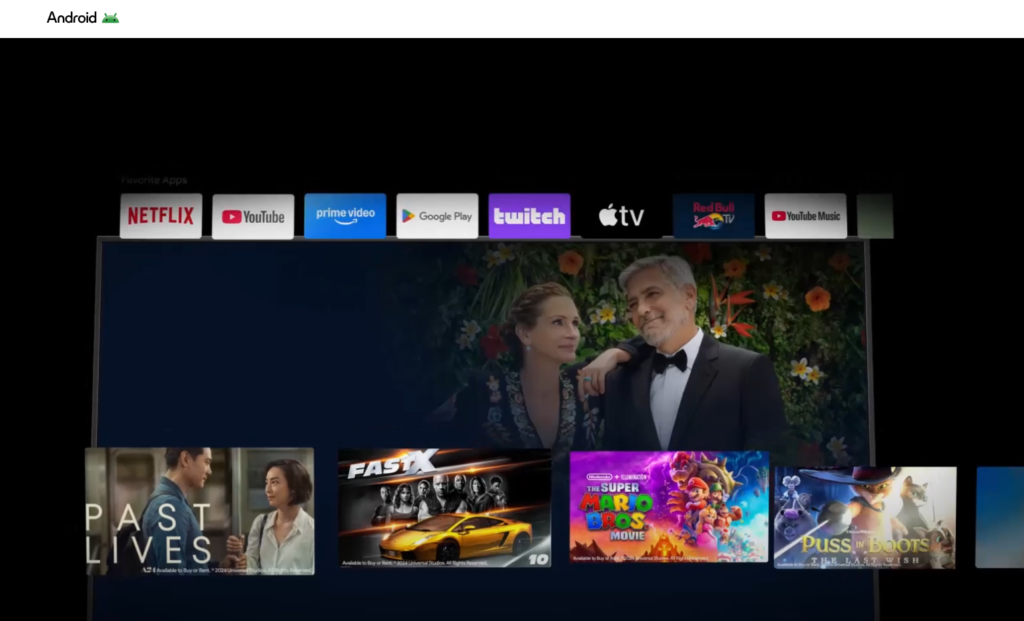
Yes, provided the box supports the application and content format you intend to use.
However, devices sold as Android boxes are not all identical. A box running a general mobile version of Android may offer a different experience from a device designed for Android TV or Google TV.
Before choosing an application, confirm:
- The exact device model.
- Its operating system and version.
- Whether it has a supported application store.
- Whether the player supports remote-control navigation.
- The account or playlist format your service supplies.
- Any separate application charges.
For help reviewing your setup, explore the device compatibility information.
How to Watch IPTV on an Android TV Box
The setup process depends on your application and provider. Use the following steps as a general checklist rather than assuming every player has identical menus.
Step 1: Connect and Update Your Device
Complete the Android TV box setup and connect it to your network.
Check for available system updates and make sure there is enough free storage for the application.
Step 2: Find a Compatible Application
On supported Android TV and Google TV devices, use the Google Play Store or the device’s app-search interface.
Search for your chosen application and verify its developer. Similar application names do not establish that you have found the release you intended to install.
If an application is unavailable, check its compatibility requirements and official installation information.
Step 3: Install Through a Trusted Route
Use the supported application store or the developer’s official distribution route.
Avoid modified APKs, unknown download codes, and software promising to unlock paid channels without authorization.
Do not disable device protections merely because an installation website asks you to.
Step 4: Add Your Account or Playlist
Your player may ask for a playlist URL, a file, or account credentials.
For a supported Xtream Codes login, the account information commonly includes a server address, username, and password. Enter the details supplied for your account rather than credentials found online.
Review the Xtream Codes setup guide if that format applies to your offer.
Step 5: Check the Included Content
Allow the application to load your account or playlist, then test the content included in your package.
If programme-guide information is supplied, check that it loads and displays the correct times. A player cannot create missing channel access or guide data simply because it supports those features.
How to Watch IPTV on an Android Phone or Tablet
Choose an application designed for mobile use.
A player that works well with a television remote may not be suitable for a touchscreen. Check phone and tablet support rather than assuming every Android TV application works comfortably on mobile devices.
The general process is:
- Find a compatible application in your supported app store.
- Confirm the developer and installation requirements.
- Install the application.
- Add your authorized account or playlist.
- Test playback using your connection.
- Check your provider’s device and connection conditions.
Keep account credentials and playlist URLs private. Avoid sharing screenshots that expose passwords or complete account links.
What Is the Best IPTV Player for Android?
There is no single best IPTV player for every Android device.
The right choice depends on whether you use a phone, tablet, television, or streaming box—and which features your content source supports.
| Requirement | What to check |
|---|---|
| Mobile viewing | Touchscreen navigation and phone compatibility |
| Television viewing | Remote-friendly menus and Android TV support |
| Playlist access | Support for your supplied playlist format |
| Account login | Support for the credentials your provider supplies |
| Programme guide | Availability of compatible guide data |
| Recording | Player features, storage, and service conditions |
| Cost | Free features, paid upgrades, and renewal terms |
TiviMate for Android TV
TiviMate is a TV-oriented media player that requires your own content source. Its application upgrade does not include a television subscription.
Check device compatibility before installing or paying for Premium. Do not assume that a TV-focused application is intended for Android phones or tablets.
Read the TiviMate guide for more information about player features and subscription requirements.
IPTV Smarters for Android
If you are considering IPTV Smarters, confirm the exact application, developer, supported devices, and current pricing.
Different similarly named applications can have different features and purchase conditions.
Review the IPTV Smarters setup information and confirm whether your account format is supported.
VLC for Android
VLC is a free, open-source media player that supports network streams and local media. Its Android documentation states that it has no ads or in-app purchases.
It can be useful for opening a supported stream without purchasing a player upgrade. However, its interface and workflow differ from dedicated IPTV players that emphasize channel browsing and programme guides.
VLC does not provide a television package. You must still supply an accessible, authorized media source.
What Is the Best Free IPTV Player?
If you want a completely free media player for supported network streams, VLC is an option to consider.
If you want a more specialized channel-management interface, compare the free versions of compatible IPTV players. Check which functions remain free and which require payment.
A free player and free television content are not the same thing.
Which IPTV App Is Completely Free?
VLC for Android is free and does not use in-app purchases.
For other applications, read the current listing and feature information. “Free to download” may still mean that recording, multiple playlists, or other functions require an upgrade.
Is There a Better App Than IPTV Smarters?
That depends on your device and priorities.
Compare applications based on account-format support, navigation, reliability on your device, and the features you need. A player that suits an Android TV box may not be the best fit for a phone.
Changing players also does not change your provider’s package, content rights, or connection allowance.
Is There a Free IPTV Smarters App?
Check the current listing for the exact Smarters application you intend to use.
A free download does not necessarily include every feature, and it does not supply television content simply because the application is installed.
How Much Does the Smarters IPTV App Cost?
Pricing should be checked in the actual application listing or purchase screen.
Player prices are separate from content-service prices. Do not assume that buying a subscription from a provider includes a paid player license unless the offer explicitly confirms this.
How Can I Watch IPTV for Free on Android?
Use an authorized free streaming service or a content source that explicitly permits free access.
A free player can display a supported source, but it does not make paid broadcasts free or establish that a publicly shared playlist is authorized.
Before using a free source, check:
- Who operates it.
- Whether access is authorized.
- Availability in your location.
- Any advertising or account requirements.
- Device compatibility.
- Whether the source is supported by your player.
Avoid treating “all premium channels free” as proof of a legitimate offer.
Which Android TV Box Is Best for IPTV Streaming?
Start with application compatibility rather than marketing claims.
Before buying, compare:
- Support for your preferred player or streaming application.
- Manufacturer software updates.
- Network connection options.
- Supported video formats and resolutions.
- Available storage.
- Remote-control usability.
- Support for any recording arrangement you need.
A device advertised as “4K” does not guarantee that every application or content service will deliver 4K playback.
Is an Android Box Better Than a Firestick for IPTV?
Neither category is automatically better for every viewer.
The useful comparison is between exact devices. Check operating-system compatibility, app availability, network options, and support.
For Fire TV, the operating system matters: Fire OS and Vega OS devices do not support identical application installation methods.
Review the Firestick IPTV guide before choosing a Fire TV device for your setup.
What Are the Disadvantages of IPTV?
Internet-delivered viewing depends on several systems working together.
Potential limitations include:
- Buffering when the network or content source struggles.
- Application incompatibility.
- Missing or inaccurate programme-guide information.
- Regional restrictions.
- Provider connection limits.
- Separate charges for player features.
- Changes to service or application availability.
A more powerful Android box cannot resolve every provider or network issue.
Why Is IPTV Not Working on Android?
Identify whether the problem affects installation, login, one channel, or all playback.
Application Will Not Install
Check your connection, free storage, system updates, and device compatibility. Restart the device and try the supported installation route again.
Do not assume that downloading an older or modified APK will fix an unsupported application.
Account Will Not Load
Verify the server address, username, password, and account status.
Ask your provider whether the account is active and whether the player accepts the supplied format.
Playback Buffers
Compare playback with another supported streaming application.
If several applications struggle, investigate the network. If only one channel fails, report that specific channel and error to the provider.
Application Crashes
Restart the application and device, check for updates, and review available storage.
If you clear application data, be prepared to restore account details and settings. Clearing data is different from simply clearing cache.
Programme Guide Is Missing
Confirm whether guide data is included and whether the application has the correct source. Check the device’s date, time, and time-zone settings.
Is an Android TV Box Legal in the USA?
An Android TV box is a device. Its name or ability to install applications does not establish the legality of every content source used with it.
The relevant questions concern the content, authorization to access it, and applicable law.
Which IPTV Providers Are Legal in the USA?
Confirm that a provider has authorization to distribute its content in your location.
A working playlist, large channel count, or application-store listing is not proof of a provider’s broadcasting rights. This guide does not verify the licensing status of any particular service.
Is IPTV Blocked in the USA?
Do not confuse a failed stream with a nationwide restriction on internet television.
A problem may involve an account, application, network, regional restriction, or particular content source. Investigate the specific error before assuming a general block.
Explore Xtreame IPTV Subscription Options
Before choosing a Xtreame IPTV offer, ask support to confirm your Android device, player configuration, account format, and location-specific availability.
The listed viewing-subscription prices are:
| Subscription period | Listed price |
|---|---|
| 1 month | $15 USD |
| 6 months | $38 USD |
| 12 months | $59 USD |
| 24 months | $89 USD |
These prices apply to the full stated periods and are separate from any player-license charges.
Explore your next step:
- IPTV trial and test information — check availability and actual conditions.
- Monthly IPTV subscription — review the one-month offer.
- IPTV plans and pricing — compare subscription durations.
- Subscribe to IPTV — explore purchase instructions.
- Help & Support — confirm your Android setup.
Compatibility, included access, simultaneous connections, trial availability, and renewal terms should be confirmed for the selected offer before purchase.
2 Responses